
|

|
| ||||||||


|
|


| | | ||||||
|
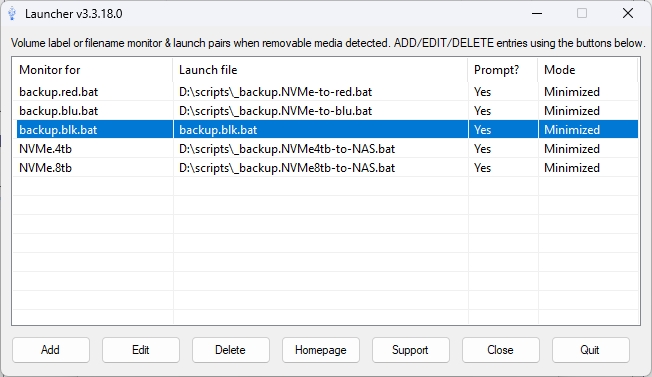
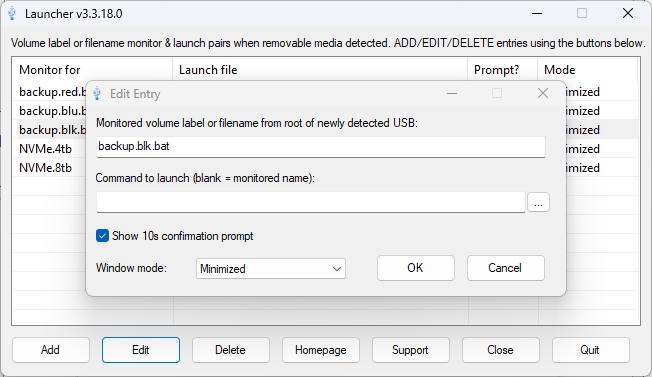
IntroductionLauncher is a SysTray app I wrote to monitor for removable drives and when it detects a new connection, it can check that device for a user-definable file to trigger a command to execute. If the file is present, Launcher runs the user defined command (or monitored file if command is left blank), and control the window state (normal, minimized, maximized, and hidden). It's Windows-based, open source (GNU), and solely written, maintained, hosted, and supported by me, Sean Shrum. Source code is written with AutoIT (.au3) and the most recent version can be found via the source link in the navbar above. If you're just looking for the latest binary build, it can be downloaded from the binary link in the navbar above. BackgroundI have multiple USB removable "cold storage" devices that I have in an offsite location. About once a year I pull these out and plug them in. As soon as my system sees these drives and the monitored file, it automatically launches my backup batch script. Each drive is dedicated to a certain set of data. All I do is plug in my USB drive and Launcher deals with launching the automated process. While you can use Launcher to launch specific applications, it works even better when using batch files. Launcher is primarily a Systray app, if you are looking for something that will travel with your media, take a look at my Autorun project. This allows you to define both computer specific launches as well as any file type calls while utilizing the standard Launcher.inf to launch the project. UsageSimply run Launcher On first run, a shortcut to the app is automatically created in your startup folder for -s systray mode (you can toggle this later by using the "Run at startup" systray item). You will then be presented with the following listview window. Here you can see, add, edit or delete monitor / command pairs. Monitored items can be either volume names or a specific filename present on a drive. Pressing Add will display the Add/Edit dialog:
Here is where you will define monitor/ command pairs, define if a prompt should be shown before running the command, and allow you to specify the window mode to run the command in. This info is stored in the Launcher.ini file located in C:\users\<current user>\appdata\roaming\Launcher
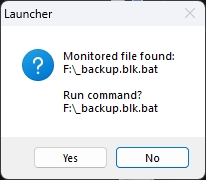
If you enable the option to Prompt, a 10s timeout dialog will appear whenever that specific monitored file is found:
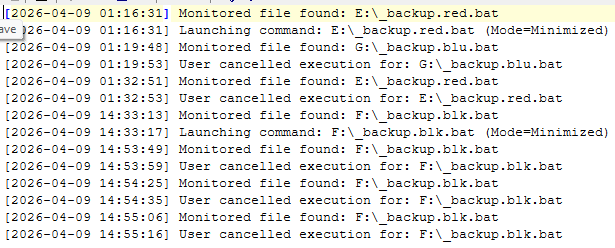
You MUST press Yes on this dialog to initiate command launch. Pressing No, the close window X, or timing out after 10s will constitute a NO GO for launch. If the prompt option is unchecked, the command will not need user confirmation and will launch immediately upon detection. Each time a new drive and monitored file is found, an entry is added to the launcher.log file located in C:\users\<current user>\appdata\roaming\Launcher) which will look like this:
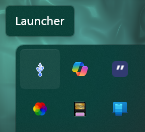
A icon (like the one shown at the top of this document) will be displayed in the SysTray area to indicate that it is active.
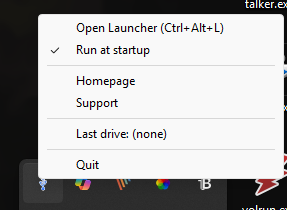
Right clicking on this icon will display a popup menu of options.
Pressing "Open Launch will open the listview window", Toggling the "Run at startup" will either add or remove a shortcut link in your startup menu, Homepage and Support will launch the web based pages, Last Drive: is mainly informative and will show the last detected removable drive. Quit completely quits Launcher. FAQs[Q.] How do I reference files in subfolders in the monitor field?
[Q.] What if I want monitor for multiple files on the same newly connected USB drive?
[Q.] Can I use local drive locations like "C:" for commands?
[Q.] Why would I want to use Launcher instead of the autorun.inf?
| | ||||||
| | | ||||||

|
|