
|

|
| ||||||||


|
|


| | | ||||||
|
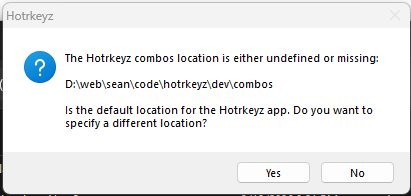
IntroductionJust a simple folder-to-hotkey utility I cooked up for another project for creating your own hotkeys in Windows. Allows for Ctrl, Alt, Win, Shift, and a large number or other special key combos as well as allowing for multiple files & programs to be launched with 1 combo. Worked so good in the originating project I decide to break this functionality out into a separate program. ...and yes, I realize that there are hotkey apps out there already but I wanted to make my own the way I liked. :-P It's Windows-based, open source (GNU), and solely written, maintained, hosted, and supported by me, Sean Shrum. Source code is written with AutoIT (.au3) and the most recent version can be found via the source link in the navbar above. If you're just looking for the latest binary build, it can be downloaded from the binary link in the navbar above. Hotrkeyz follows the Send() functionality of AutoITScript. If you need a complete listing of the keystrokes that can be sent and special codes for non-standard keys, look there. UsageFirst time run will prompt you for the location of the "combos" folder:
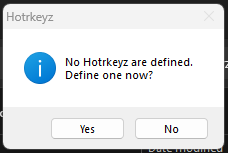
Pressing [Yes] will prompt you to select the location of a existing combos folder or a location to create a new one. While no Hotrkeyz combos are defined, you will be prompted to create one:
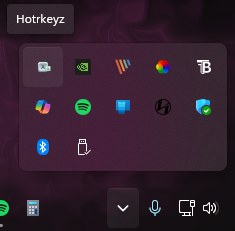
Pressing [Yes] will display the Combo Define dialog while pressing [No] will keep Hotrkeyz running on your SysTray so that you can define a combo later. Hotrkeyz will now appear as systray icon.
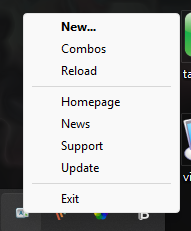
Right clicking on this icon will produce the following pop-up menu:
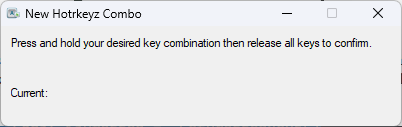
Dbl clicking the HotrKeyz icon or by selecting 'New...' from the right mouse click systray menu will display a dialog into which you can define new key combos.
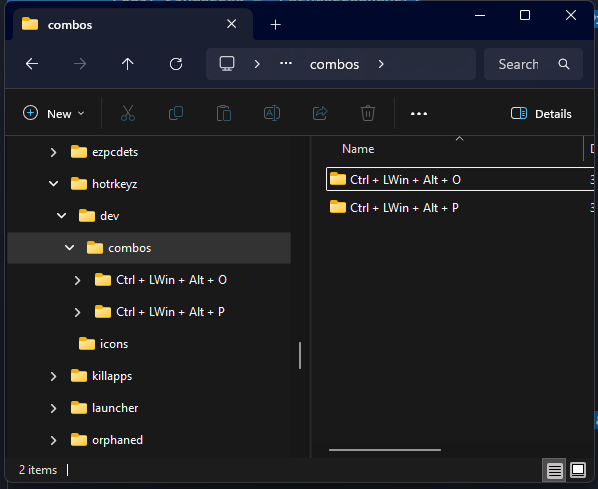
If the shortcut has not been defined, the app will create the following structure and display Windows Explorer in the newly defined combo location like this:
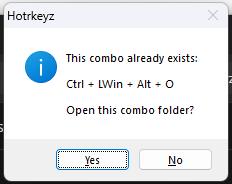
If the defined combo already exists, you will be prompted that the combo is already defined and asked if you want to navigate to it. Pressing [No] will allow you to try another combo while pressing [Yes] will navigate to the defined combo folder.
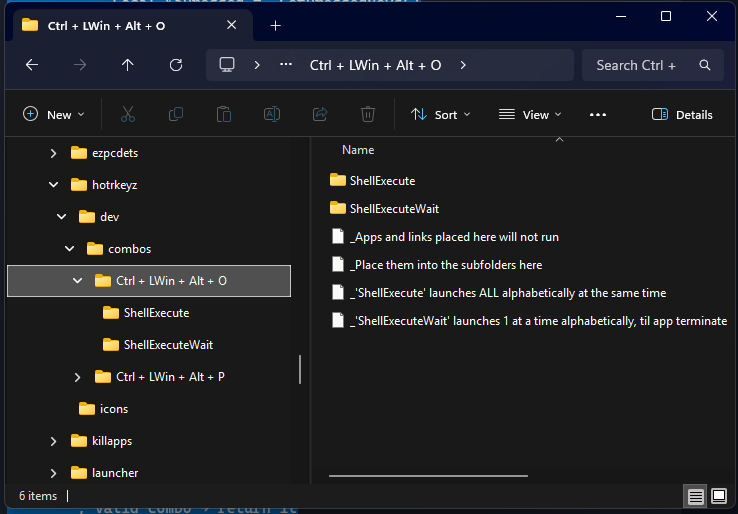
A sample of the created combo folder structure (and app 'reminders') will appear as below:
Once you have the combo folder created, you can place whatever files, executables, or even shortcuts that you want launched into that folder. You may also place as many files into the folder that you want. You can navigate to your defined combos folder by clicking on '...Combos' from the SysTray menu. Whenever you activate the defined hotkey, all the files in the folder are launched via ShellExecute() and ShellExecuteWait(). When running files and shortcuts in your combo "shell" folder, Hotrkeyz does so alphabetically. So if you want to execute commands in a specific order, create shortcuts to them and rename the shortcuts as 1-<shortcut>, 2-<shortcut>, etc. This will allow you to control launch order. FAQsQ. Will v.1 combos work with v.2
Q. Where should I set my combos directory to?
Q. When invoking a combo, Windows prompts me for a program to run with the file?
Q. Does the \combos folder have to be under the executable location?
Q. What is a good combo starter that won't interfere with Windows pre-defined ones?
Q. How many keys can be pressed at the same time?
Q. Some of my Hotrkeyz combos stop working over time?
Q. Some of my Hotrkeyz combos don't work at all?
| | ||||||
| | | ||||||

|
|